Overview
The Trust Center Rich Text Editor now includes advanced formatting controls, giving you full flexibility to match brand guidelines when editing content fields. The expanded toolbar lets you control fonts, colors, layout, and source code directly in the editor.
This article describes the new formatting controls available in the Rich Text Editor and how to use them.
What you can do
✓Set custom font families and font sizes for any text selection
✓Apply text and table cell colors using the color picker
✓Control line height and text alignment (Left, Center, Right, Justify)
✓View and edit the underlying HTML using the source code toggle
Toolbar Controls
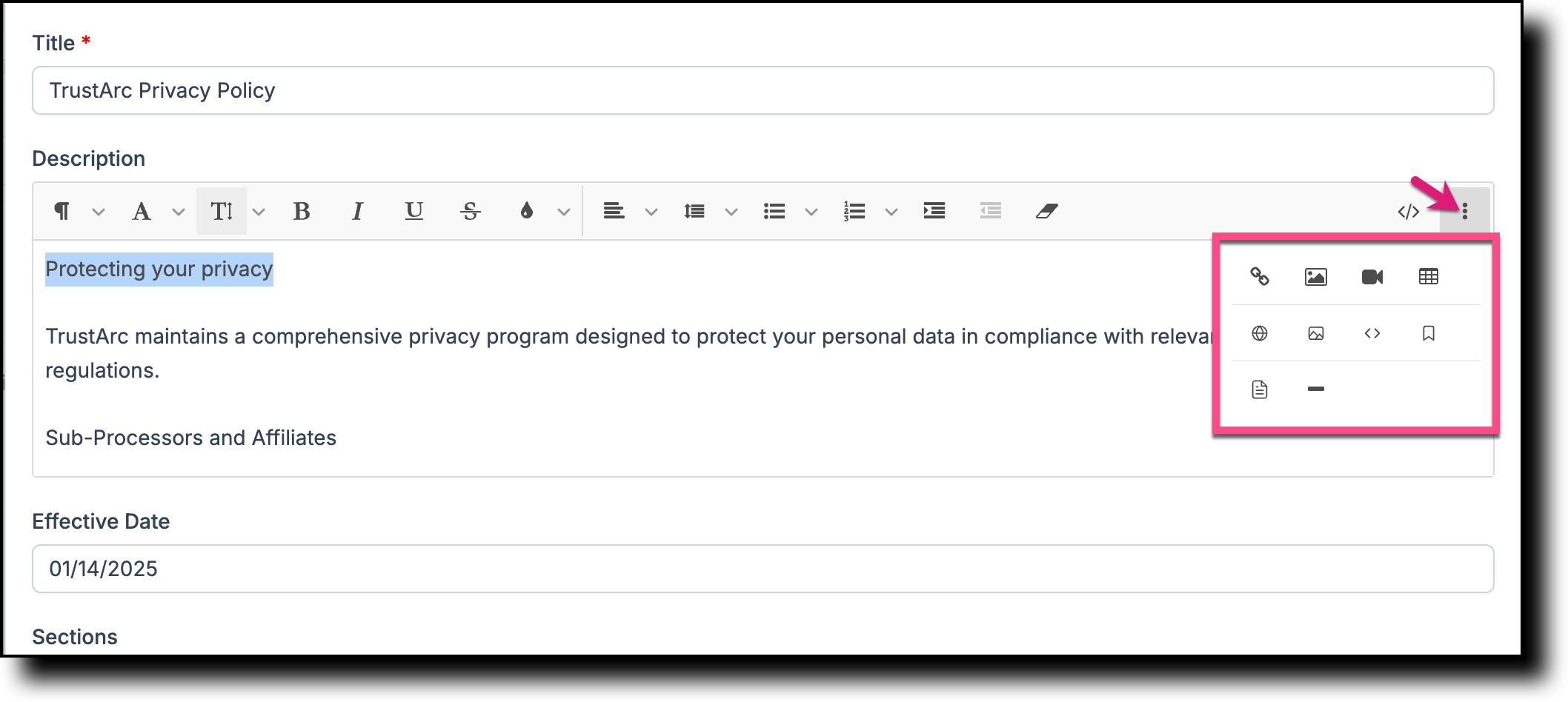
The following controls have been added to the Rich Text Editor toolbar. On narrow screens, overflow controls move under the ⋮ (three dots) dropdown so all tools remain accessible in a single row.
| Control | What it does |
|---|---|
| Font Family | Changes the typeface of selected text to match your brand fonts. |
| Font Size | Sets the size of selected text. |
| Brush (color picker) | Applies a foreground or background color to selected text. |
| Brush for Table Cells | Applies a background color to a selected table cell. This control is only visible when a table cell is clicked. |
| Line Height | Adjusts the spacing between lines of text. |
| Align | Sets text alignment. Options: Left, Center, Right, Justify. |
| Source Code | Toggles between the visual editor and the underlying HTML source. Use this for precise formatting control. |
Using the Advanced Formatting Controls
1
Navigate to the content field you want to edit and open it in the Rich Text Editor.
2
Select the text you want to format.
3
Click the relevant control in the toolbar — Font Family, Font Size, Brush, Line Height, or Align — and choose your desired value from the dropdown.
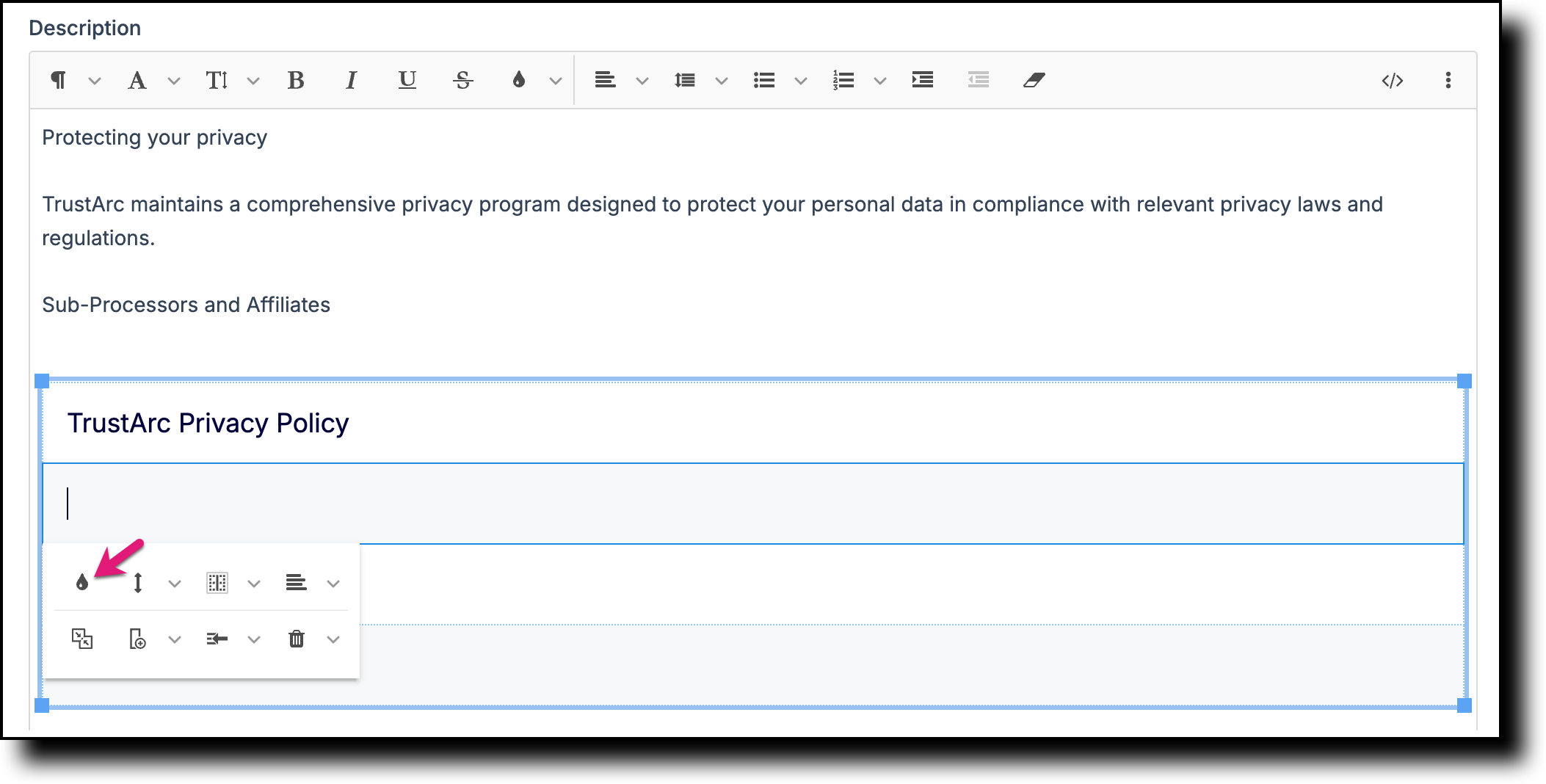
📋 Note: To apply a color to a table cell background, click inside the cell first. The Brush for Table Cells control will appear in the toolbar.
4
To edit the underlying HTML directly, click Source Code in the toolbar to switch to source view. Make your changes, then click Source Code again to return to the visual editor.
5
When you are finished, click Save to apply your changes.
💡 Tip: On smaller screens, some toolbar controls move under the ⋮ (three dots) dropdown to keep the toolbar in a single row. If you cannot find a control, click the three dots icon to reveal the full list.
TrustArc Trust Center · Using Advanced Rich Text Editor Formatting · support.trustarc.com