Overview
In the Data Mapping & Risk Manager (DMRM), data elements that are no longer actively used can be hidden rather than deleted. Hidden data elements are greyed out in the Data Elements list and do not appear in data element dropdown menus across the platform.
This article explains how to hide a data element in DMRM using the context menu or the Visibility icon.
What you can do
✓Hide a data element using the context menu
✓Hide a data element directly from the Visibility icon in the Data Elements list
Hiding a Data Element
To hide a data element, follow these steps:
1
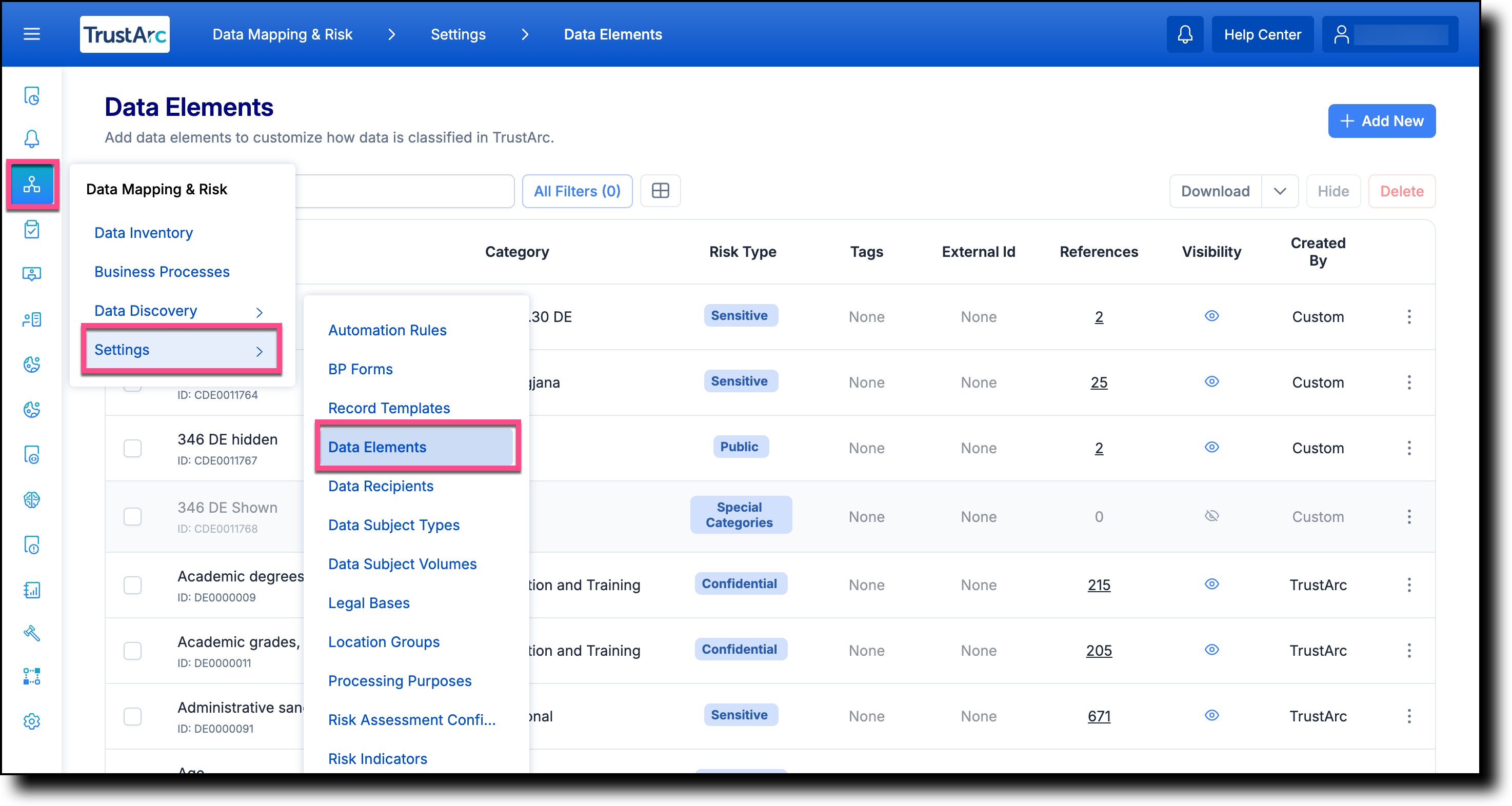
In the left navigation panel, hover over the
Data Mapping & Risk Manager
icon, and then navigate to
Settings >
Data Elements.
2
To the right of the data element record you want to hide,
click the context menu icon, and then select
Hide.
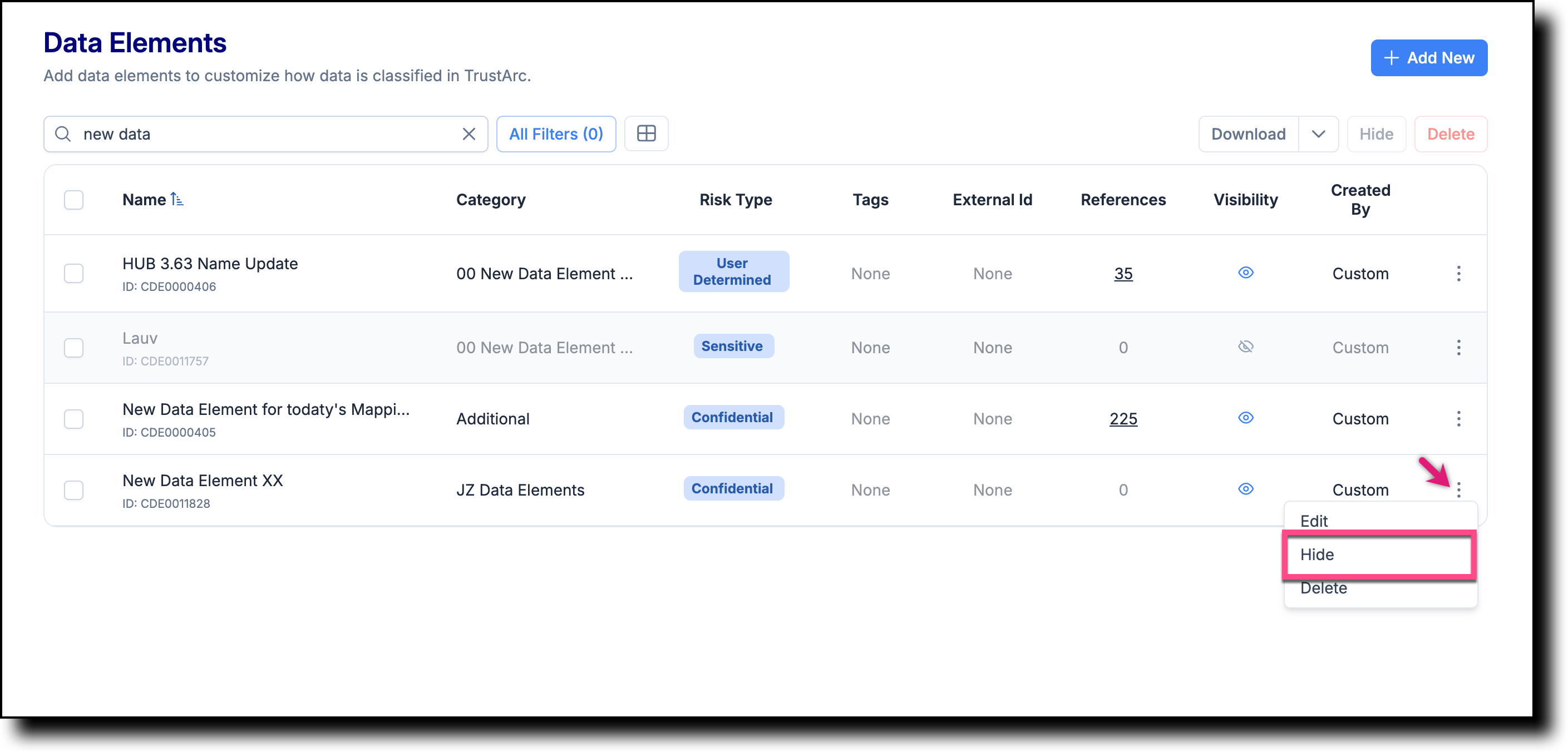
📋 Tip: You
can also hide a data element by clicking the
Visibility icon
directly in the
Visibility column
of the Data Elements list.
📋 Notes
If the value in the
References column
is any number other than zero, the data element is linked
to one or more business process records or systems. The number
shown indicates how many records or systems the data element
is currently linked with.
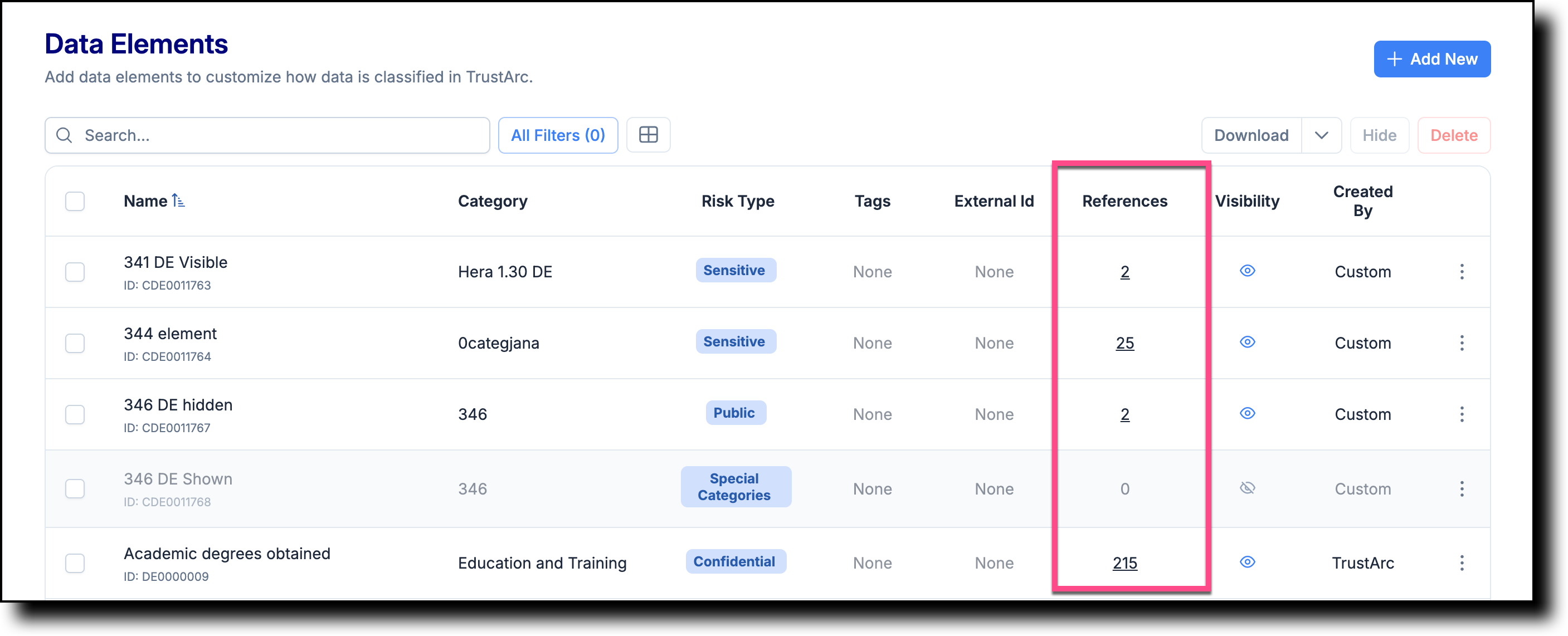
Hidden data elements are greyed out in the Data Elements
list and do not appear in data element dropdown menus across
the platform.
TrustArc Data Mapping & Risk Manager · Hiding a Data Element ·
support.trustarc.com