Important notice
The Classic Experience will be sunset on
Aug. 1.
If you have questions, contact your Customer Success and Implementation Manager,
Account Manager, or
support@trustarc.com.
There are two types of single-assessment reports in Assessment Manager:
Detailed Assessment Report
Contains all details from the
Assessment page,
including all questions with responses and remediation recommendations,
all comments and attachment names, all tasks, and an events
log.
Executive Summary Report
Provides high-level information centered around unanswered
questions, open issues, and incomplete tasks. Matches the
Action Plan section
of the Assessment page.
To generate either report type, select one or more assessments first. If you select more than one assessment, separate reports are generated for each.
Generating a Single Assessment Report
1
From the left side of the page, hover the mouse over the
Assessment Manager icon (1), and
then select Assessments (2).
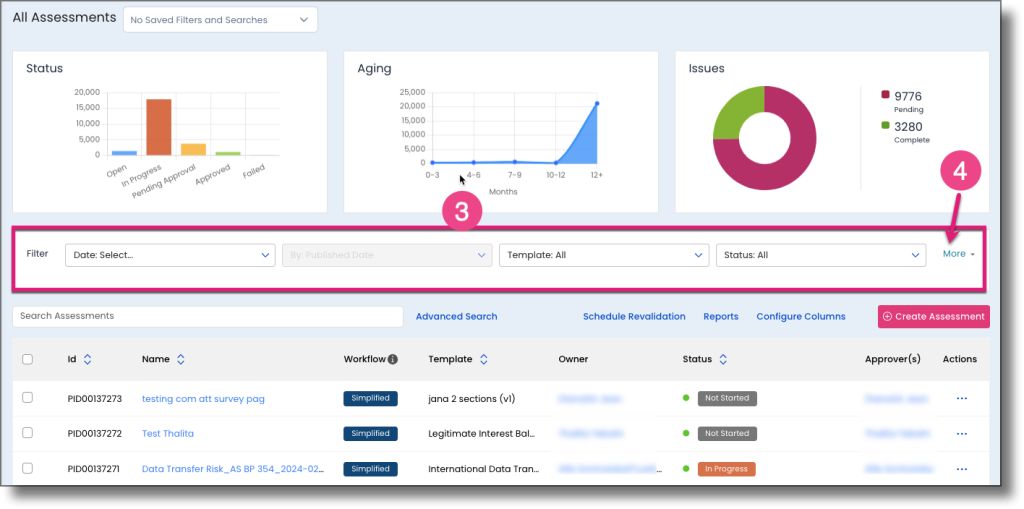
📋 Note: The filter controls (3) on this page let you filter assessments by time, template, status, and other criteria. For more advanced filtering, click the More button (4).
2
Once you have filtered the assessments list, select the assessments
you want to report on by checking the checkboxes
(5) to the left of each assessment.
3
Click Reports > PDFReports, and then select Detailed Assessment (PDF) or Executive Summary (PDF).
4
Select No for a
download link, or Yes
to have the report attached to the email notification.
📋 Note: If Detailed Assessment (PDF) is selected, you will have the option to exclude the Events section from the report.
Alternatively, click Reports (6) > All Reports (7) in the main menu and wait for your report's status (8) to change from PENDING to OK. This may take a few seconds to a few minutes — refresh the page periodically to check.
5
Download the report. If you selected a single assessment,
the report is a single .pdf file. If you
selected multiple assessments, the report is an archive containing
one .pdf per assessment.