Using the CSV Import tool

Overview

The CSV Import tool lets you create or update System, Third Party, and Company Affiliate records in Data Inventory in bulk. You can import records from the All Records tab or from any specific record type tab. The import process is the same for all record types — download the appropriate template, complete it, upload it, and click Import.

This article covers CSV import procedures for all four entry points: All Records, Third Party Records, System Records, and Company Records.

What you can do
Create new System, Third Party, and Company Affiliate records in bulk via CSV
Update existing records by including their record IDs in the CSV
Prerequisites
Active TrustArc account with Data Inventory access
CSV Import template downloaded and completed (available from the Import modal)
Rules for Updating Existing Records

The following rules apply when using a CSV file to update any existing data inventory record:

Include the existing record IDs in the CSV, then update any remaining fields you want to change.
Any field left blank in the CSV will not be updated in the Hub record — blank values are ignored.
For existing contacts, at least the Full Name and Email address must match in order to update other fields. Full Name and Email themselves cannot be updated via CSV import.
Fields that hold a collection of values (such as Locations or multi-value Tag Groups) are appended to, not replaced. Fields with a single value or free-text are replaced with the new value.
System records can be updated via their owning record template files. Identify which systems to update using their IDs.
If the ID fields are left blank but all required fields have values (marked with * in the column header), new records will be created instead of updating existing ones.
Importing from All Records

Use this method to import System, Third Party, and Company Affiliate records in a single operation from the All Records tab.

1

From the left side of the page, hover over the Data Mapping & Risk Manager icon, and then select Data Inventory.
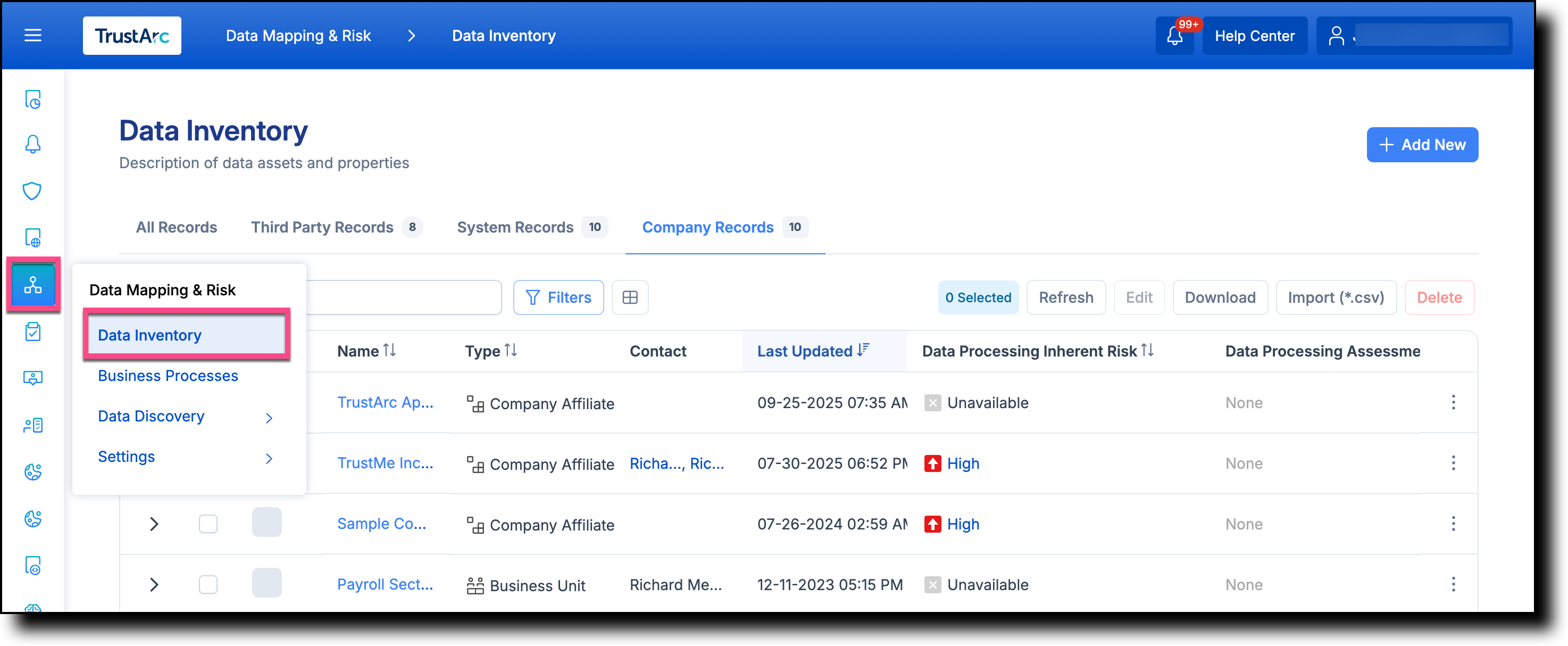
Navigating to Data Inventory from the left navigation
2

From the top-right corner of the page, click Import (*.csv).
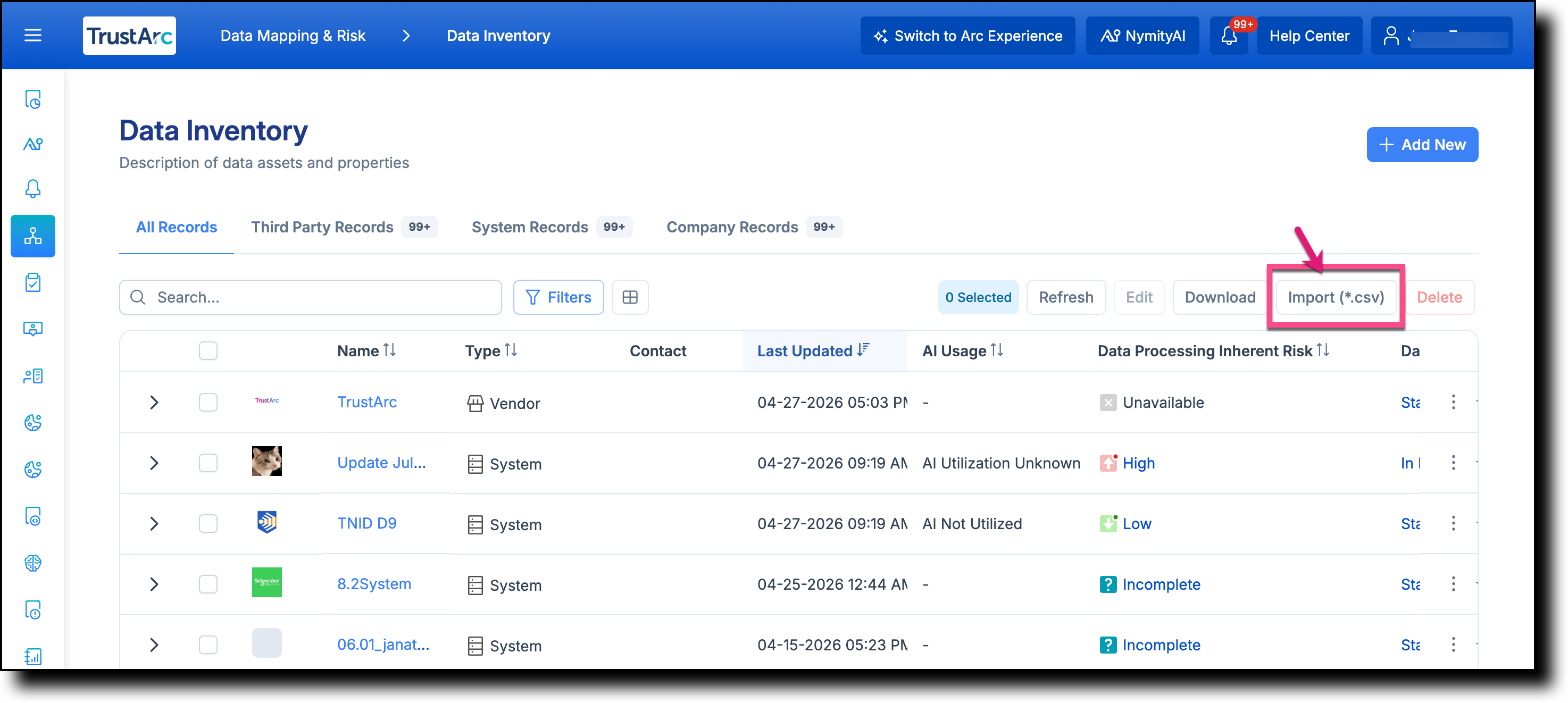
Data Inventory All Records tab with Import CSV button highlighted

The Import modal appears with options to download the CSV Import templates or a sample template.
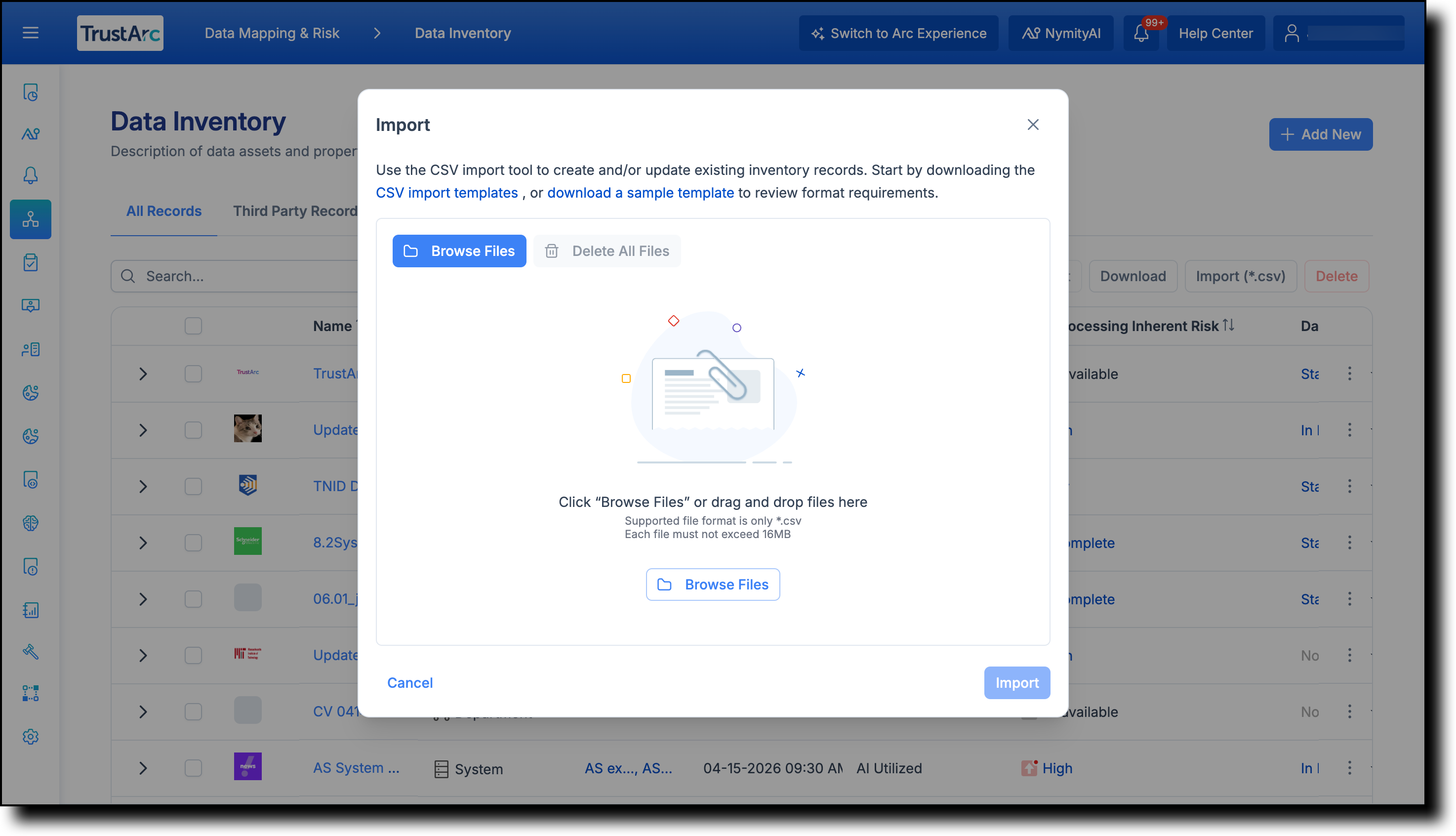
Import modal showing template download options
3

Complete the CSV Import template and drag and drop it into the Import modal.

📋 Note: If you are updating existing records, follow the Rules for Updating Existing Records above.
4

Click Import.

📋 Note: Once the upload is complete, you will receive a confirmation email. If any records fail to import, the email will include an attachment explaining the reason for each failure.
Importing Third Party Records

Use this method to import Third Party records directly from the Third Party Records tab.

1

From the left side of the page, hover over the Data Mapping & Risk Manager icon, and then select Data Inventory.

Navigating to Data Inventory from the left navigation
📋 Note: The All Records tab is selected by default.
2

Click to open the Third Party Records tab.

Data Inventory page with Third Party Records tab selected
3

From the top-right corner of the page, click Import (*.csv).

Third Party Records tab with Import CSV button highlighted

The Import modal appears with options to download the CSV Import templates or a sample template.

Import modal showing template download options
4

Complete the CSV Import template and drag and drop it into the Import modal.

📋 Note: If you are updating existing records, follow the Rules for Updating Existing Records above.
5

Click Import.

📋 Note: Once the upload is complete, you will receive a confirmation email. If any records fail to import, the email will include an attachment explaining the reason for each failure.
Importing System Records

Use this method to import System records directly from the System Records tab.

1

From the left side of the page, hover over the Data Mapping & Risk Manager icon, and then select Data Inventory.

Navigating to Data Inventory from the left navigation
📋 Note: The All Records tab is selected by default.
2

Click to open the System Records tab.

Data Inventory page with System Records tab selected
3

From the top-right corner of the page, click Import (*.csv).

System Records tab with Import CSV button highlighted

The Import modal appears with options to download the CSV Import templates or a sample template.

Import modal showing template download options
4

Complete the CSV Import template and drag and drop it into the Import modal.

📋 Note: If you are updating existing records, follow the Rules for Updating Existing Records above.
5

Click Import.

📋 Note: Once the upload is complete, you will receive a confirmation email. If any records fail to import, the email will include an attachment explaining the reason for each failure.
Importing Company Records

Use this method to import Company records directly from the Company Records tab.

1

From the left side of the page, hover over the Data Mapping & Risk Manager icon, and then select Data Inventory.

Navigating to Data Inventory from the left navigation
📋 Note: The All Records tab is selected by default.
2

Click to open the Company Records tab.

Data Inventory page with Company Records tab selected
3

From the top-right corner of the page, click Import (*.csv).

Company Records tab with Import CSV button highlighted

The Import modal appears with options to download the CSV Import templates or a sample template.

Import modal showing template download options
4

Complete the CSV Import template and drag and drop it into the Import modal.

📋 Note: If you are updating existing records, follow the Rules for Updating Existing Records above.
5

Click Import.

📋 Note: Once the upload is complete, you will receive a confirmation email. If any records fail to import, the email will include an attachment explaining the reason for each failure.
TrustArc  ·  Using the CSV Import Tool  ·  support.trustarc.com