Overview
In the Data Mapping & Risk Manager (DMRM), processing purposes that are no longer actively used can be hidden rather than deleted. Once hidden, a processing purpose is greyed out in the Processing Purposes list and no longer appears in processing purpose dropdown menus across the platform.
This article explains how to hide a processing purpose in DMRM, including what to expect when it is linked to existing business process or system records.
What you can do
✓Hide a processing purpose from selection across the platform
✓Confirm removal from linked business process or system records when applicable
Hiding a Processing Purpose
To hide a processing purpose, follow these steps:
1
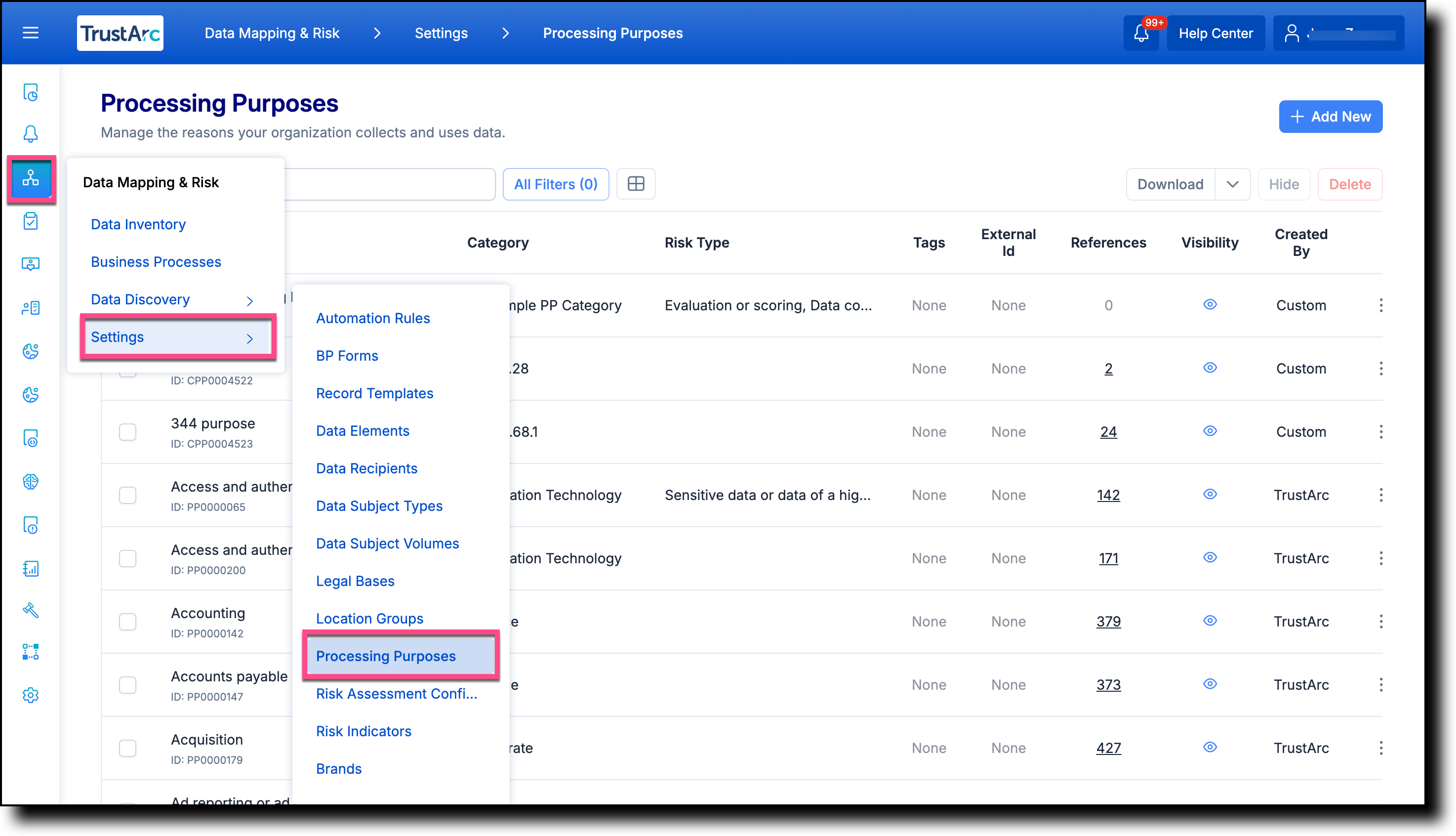
In the left navigation panel, hover over the
Data Mapping & Risk Manager
icon, and then navigate to
Settings >
Processing Purposes.
2
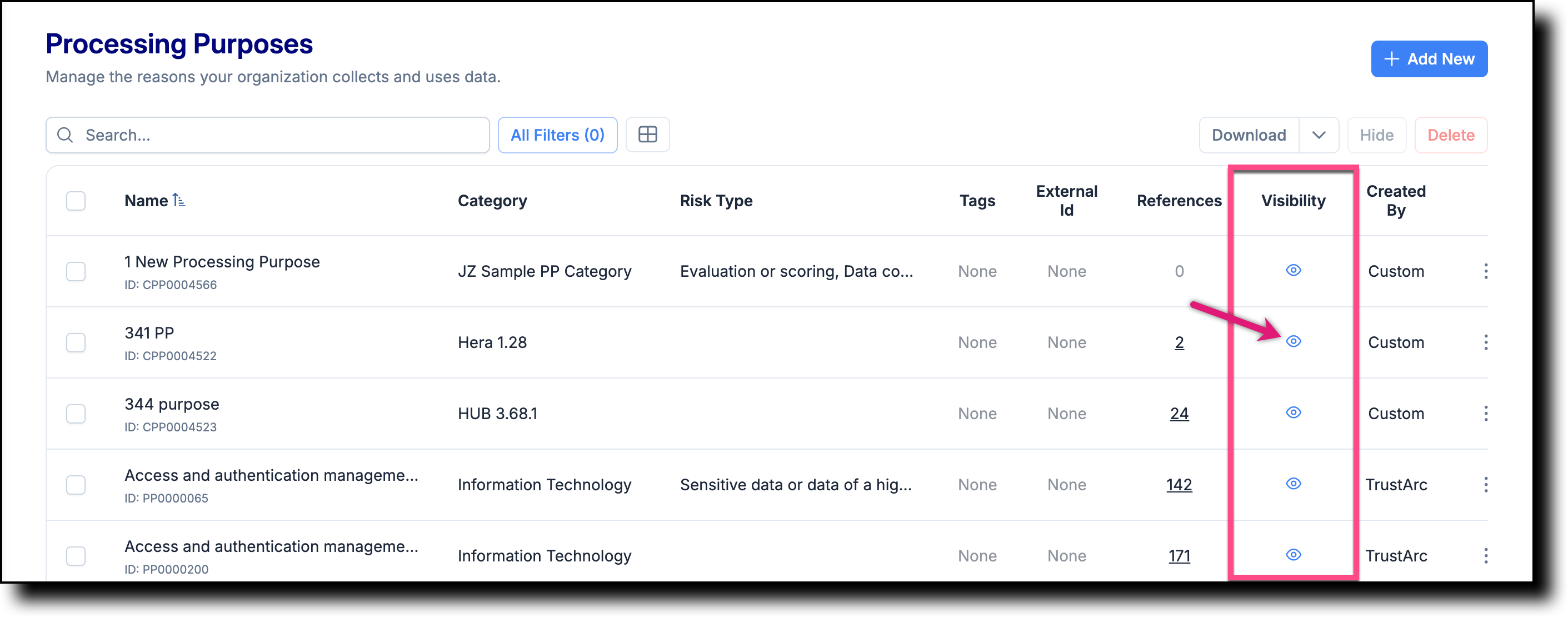
In the Visibility
column to the right of the processing purpose record
you want to hide, click the
Visibility icon.
3
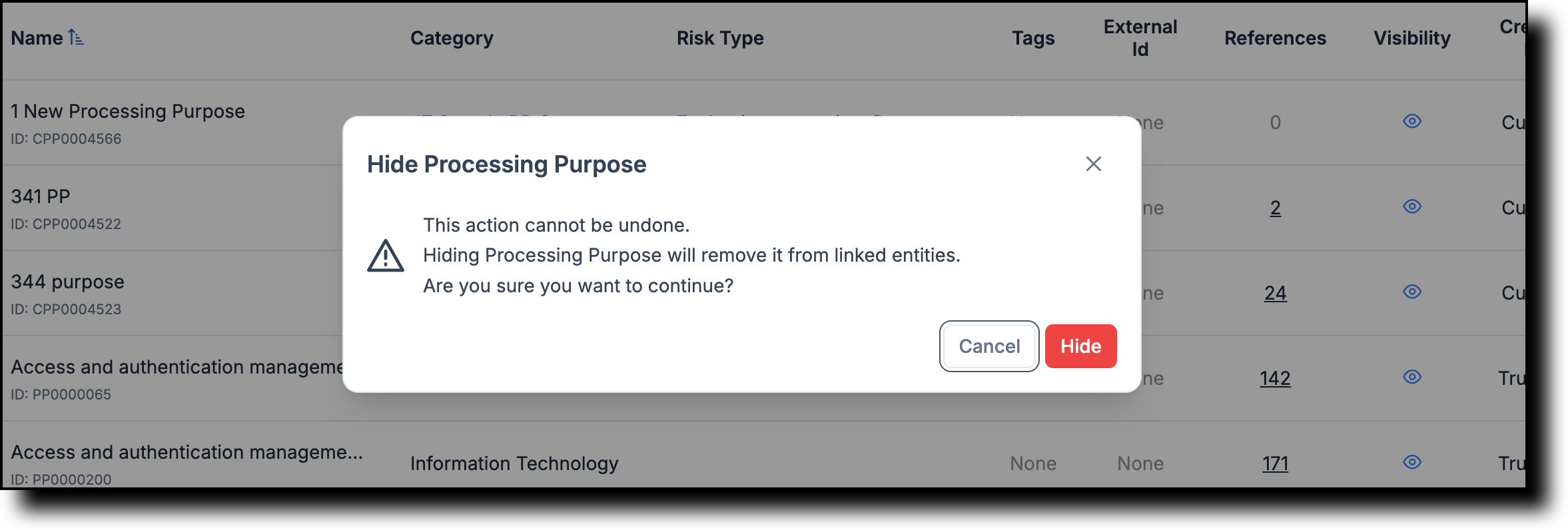
If the processing purpose is linked to a business process
or system record, a confirmation dialog appears. Click
Hide to confirm
removal from all linked entities.
📋 Notes
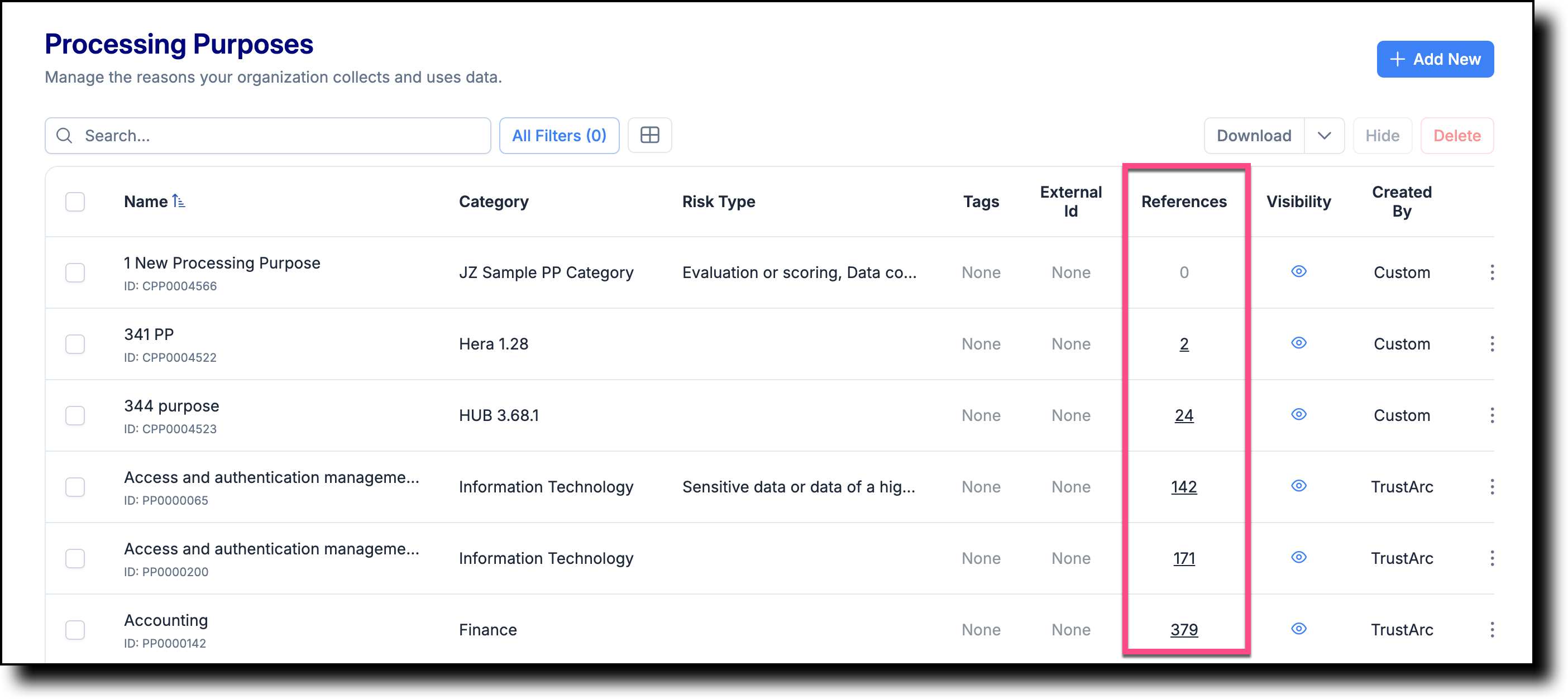
If the value in the
References column
is any number other than zero, the processing purpose is
linked to one or more business process records or systems.
The number shown indicates how many records or systems it
is currently linked with.
Hidden processing purposes are greyed out in the Processing
Purposes list and do not appear in processing purpose dropdown
menus across the platform.
TrustArc Data Mapping & Risk Manager · Hiding a Processing Purpose ·
support.trustarc.com