Overview
After creating a data subject type in the Data Mapping & Risk Manager (DMRM), you can update its name, category, and External ID at any time to reflect changes in how that data subject is classified or referenced.
This article explains how to edit an existing data subject type in DMRM.
What you can do
✓Rename an existing data subject type
✓Reassign the data subject type to a different category, or create a new one
✓Update the External ID
Editing a Data Subject Type
To edit an existing data subject type, follow these steps:
1
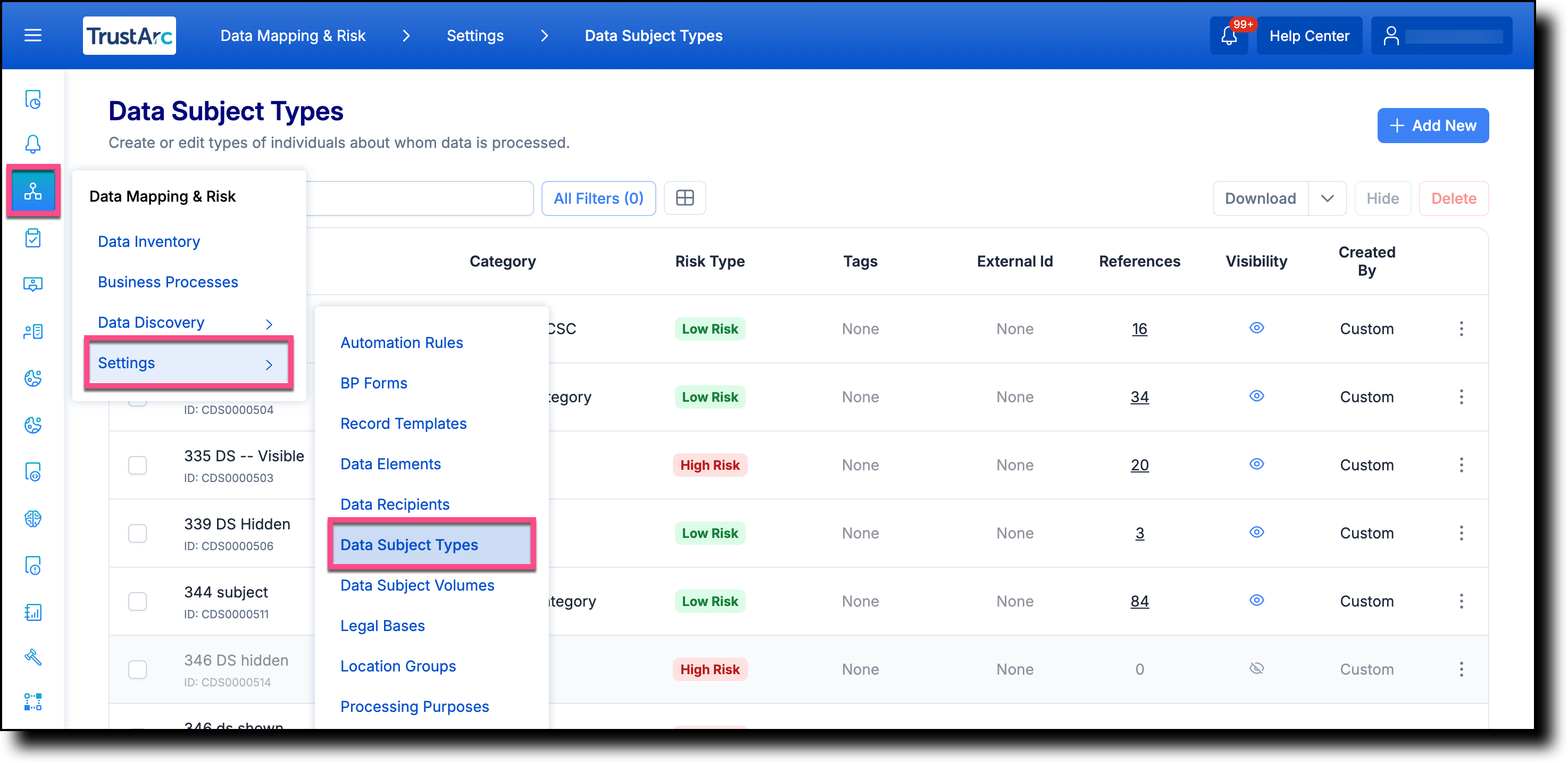
In the left navigation panel, hover over the
Data Mapping & Risk Manager
icon, and then navigate to
Settings >
Data Subject Types.
2
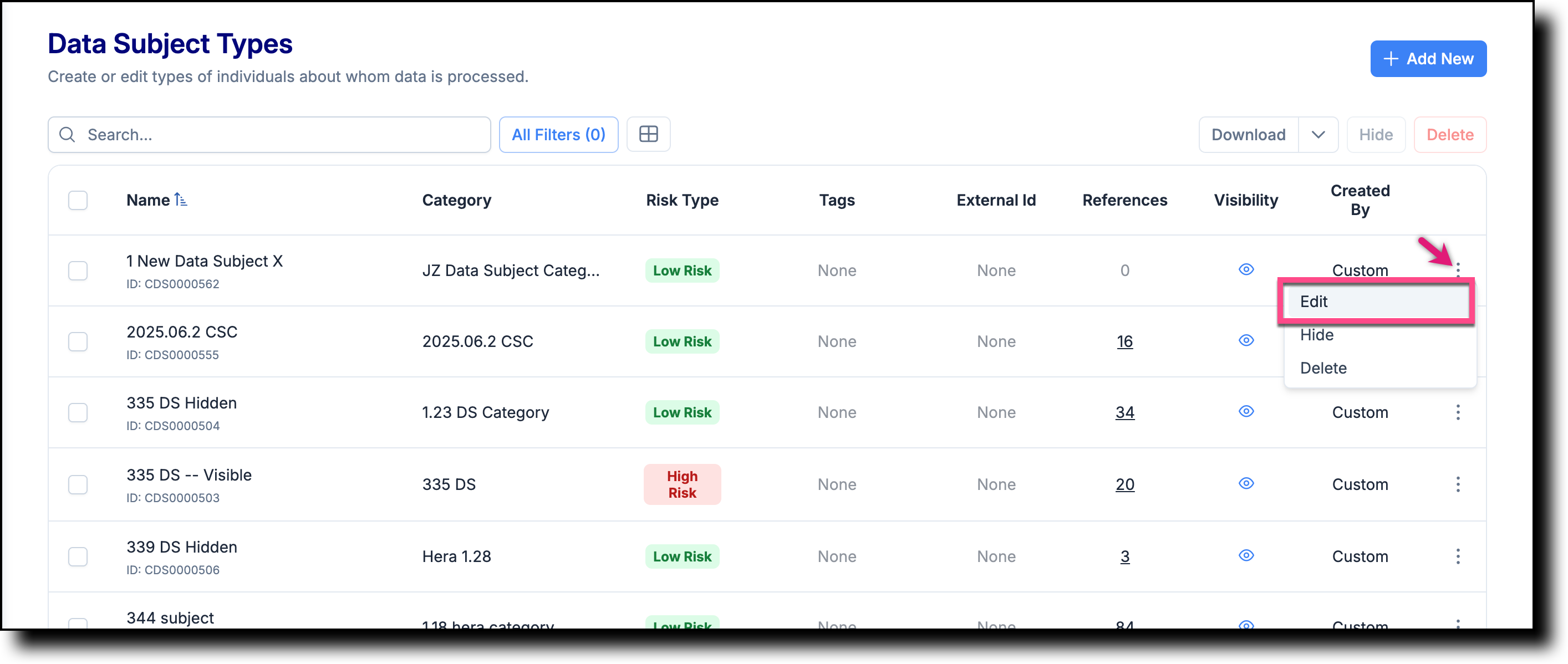
To the right of the data subject type record you want
to edit, click the context menu icon, and then select
Edit.
3
Update any of the following fields, and then click
Update.
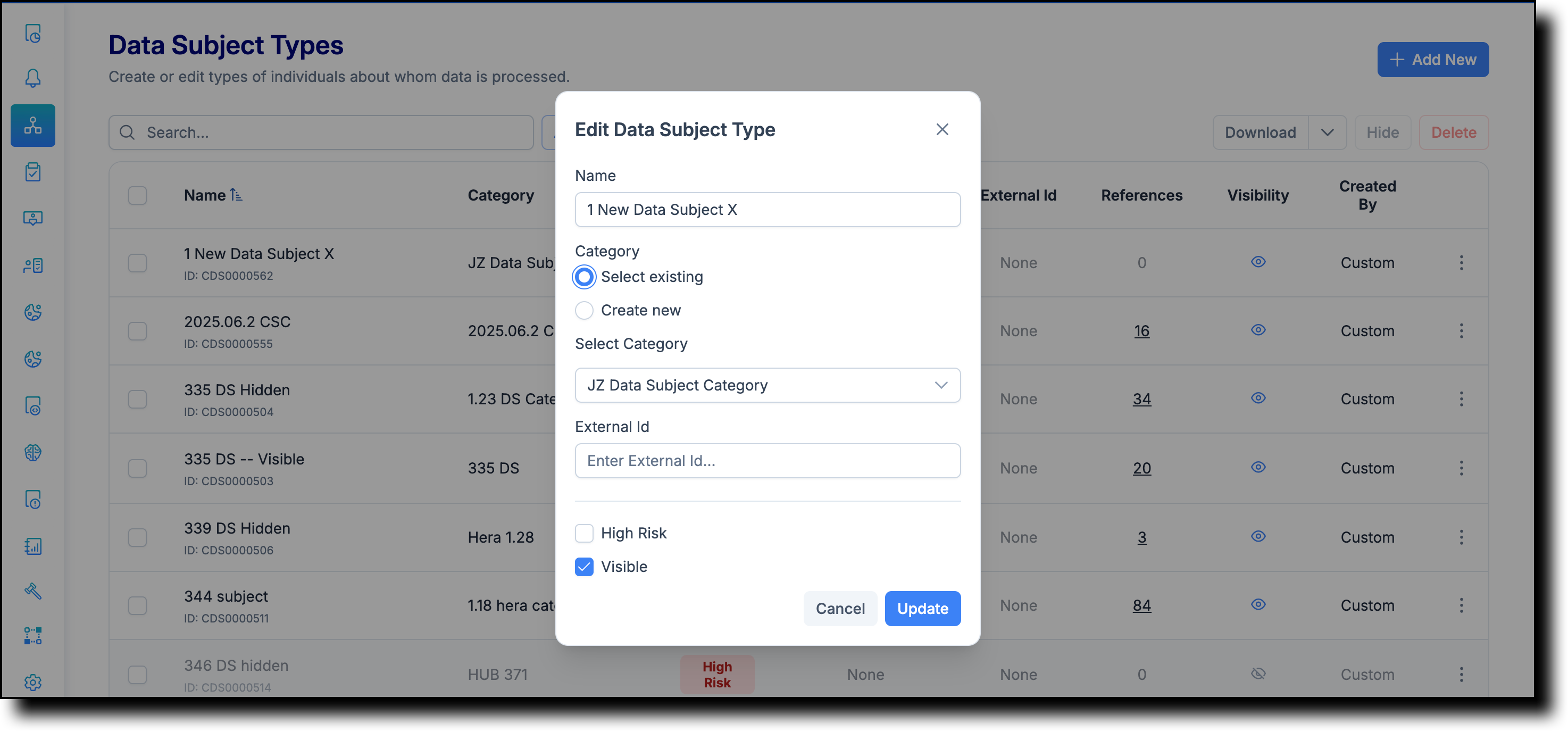
•Name
— Enter a new name for the data subject type.
•Category
— Select a different category from the dropdown list,
or select Create new
to add a new category.
•External ID
— Enter a new external identifier for the data subject
type.
📋 Note: Changes take
effect immediately after you click
Update. The updated
data subject type is reflected across all areas of Data Mapping
& Risk Manager where it is in use.
TrustArc Data Mapping & Risk Manager · Editing a Data Subject Type ·
support.trustarc.com